- DATE:
- AUTHOR:
- The Distribution Innovation team
Camera scanning in Cargostream
Production date: 04.11.2026
In this release we are introducing a new and improved camera scanner in the current Cargostream solution, making it easier to scan parcels without a dedicated handheld scanner.
The new functionality provides automatic barcode detection using the camera on your mobile phone, tablet, or laptop. Simply point your camera at the barcode – no need to click or press anything.
Please note: Camera scanning is available for Outgoing Scan and Incoming Scan only. It is not supported in Info Scan.
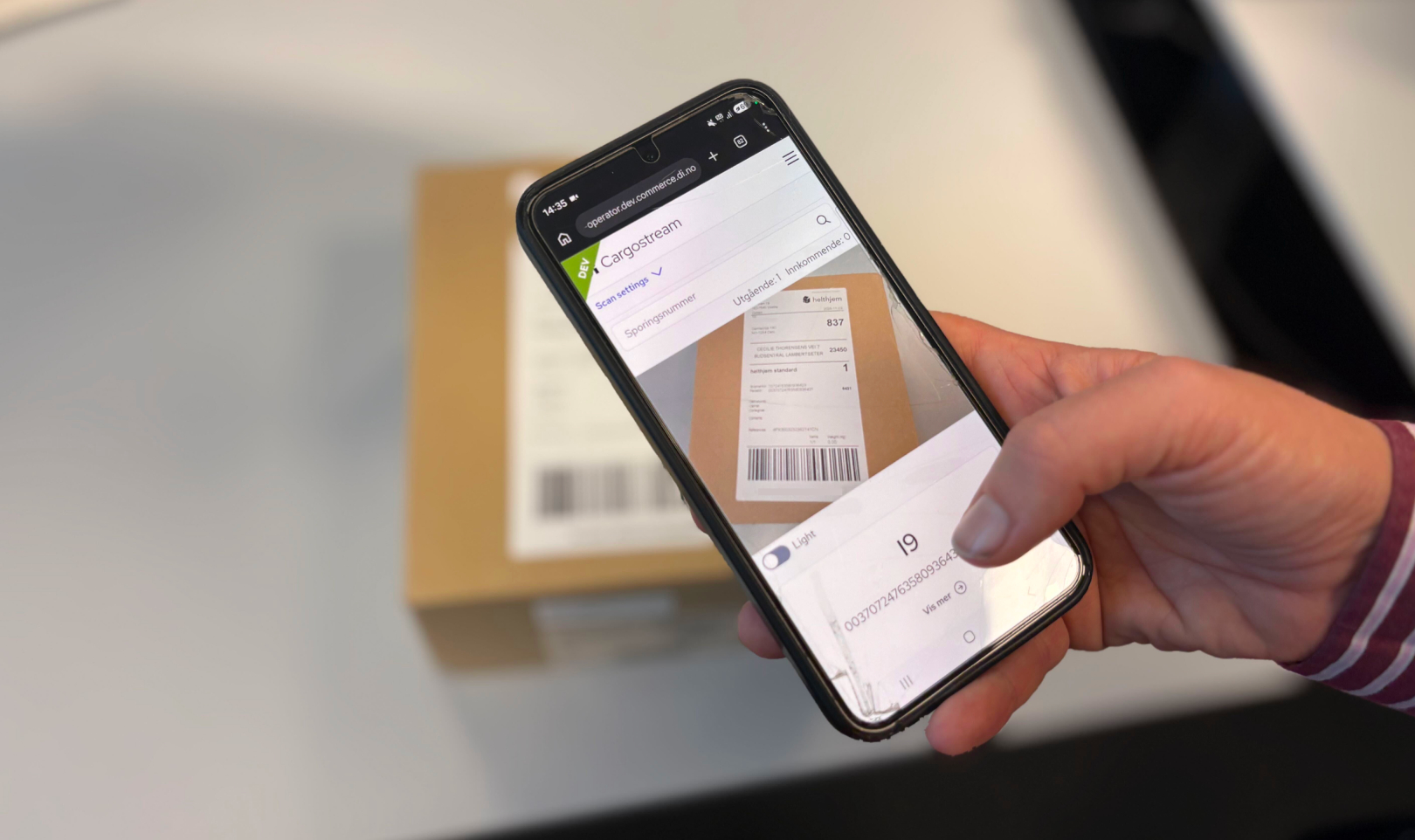
How to enable camera scanning
Camera scanning must be enabled individually for each station:
Open Cargostream Admin.
Find the relevant station and select Edit station.
Enable Camera scanning and save your changes.
Once enabled, operators can turn the camera on or off directly from the scanning interface in Cargostream.
Device and browser requirements
A mobile phone, tablet, or laptop with a working camera or webcam.
An up-to-date browser with camera access support.
Camera permissions must be granted when prompted.
For best results, ensure the barcode is clearly visible, well-lit, and in focus.
What's changed?
Improved barcode recognition using a new scanning solution.
Automatic scanning without manual interaction.
Simplified camera controls with an On/Off option.
Camera scanning can be enabled or disabled for each station.
Manual entry and handheld scanners continue to work as before.
Feedback and recommendations
The camera scanning is a new and evolving feature that has not yet been tested as extensively as our established scanning solutions. We welcome your feedback and experiences to help us improve it further.
If camera scanning does not work as expected, we recommend disabling the feature for the affected station in Cargostream Admin and continuing with traditional handheld scanning or manual entry, after reporting to DI Support.