- DATE:
- AUTHOR:
- The Distribution Innovation team
DI Optimize - version 1.8.2
You can now install version 1.8.2 of our Optimize plugin. To get it, upgrade the plugin directly in QGIS (Plugins → Manage and Install Plugins → Installed → Upgrade). QGIS will also automatically notify you about the available update, this notification is typically shown within up to 3 days, depending on QGIS’s update check and repository refresh timing.
Faster resequencing when moving work between routes (TSP only for affected routes)
What’s new
When you move modules from one route to another and choose to sequence at the same time, we now resequence only the routes that were affected, not every route in the area.
Previously, resequencing would trigger a full re-optimization across all routes. In large areas, this could take a long time and increase computation cost. With this change, results arrive faster and you avoid unnecessary waiting.
Example
You move a set of stops from Route A to Route B and check the checkbox “Sequence”.
Before: Routes A–Z were resequenced.
Now: Only Route A and Route B are resequenced.
Break coordinates are now saved correctly after optimization
What’s new
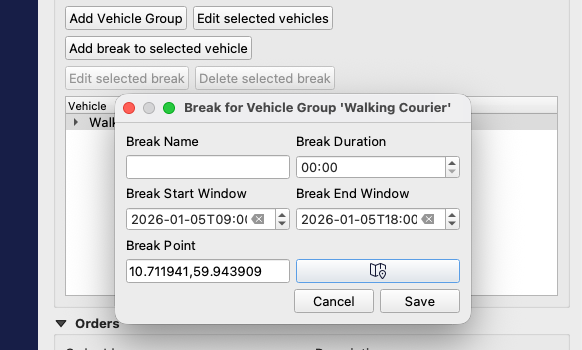
We fixed an issue where break coordinates were not stored after an optimization completed.
If you ran a new version of the optimization, you previously had to re-enter break coordinates manually. Break location data is now preserved as expected, reducing repetitive work.
Example
You optimize a route plan that includes breaks with specific coordinates.
You rerun the optimization later.
Now: Break coordinates remain in place.
Clear banner warning when your API key is missing or invalid
What’s new
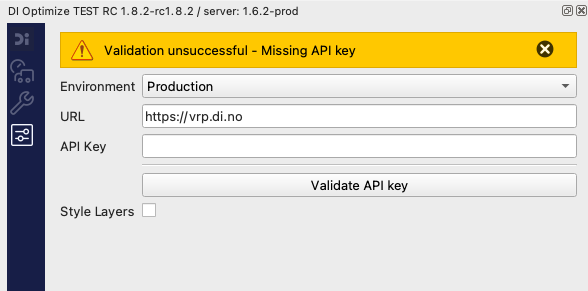
You’ll now see a banner warning if your API key is missing or invalid, explaining that authentication is required.
Previously, the plugin could fail later (e.g., when submitting an optimization), which felt confusing because the error happened “downstream.” Now you get immediate guidance, and if your key is missing you’re taken directly to the API settings page to add a valid key.
Example
You start the plugin without a configured API key.
Now: A banner explains what’s wrong and routes you to the API key page.
“Features” renamed to “Locations” in the selection summary
What’s new
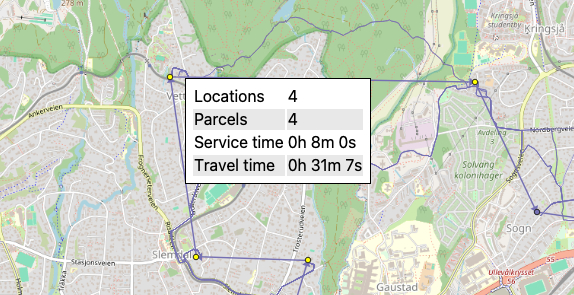
In the selection summary popup, we renamed “features” to “locations.”
This makes the summary easier to interpret: it reflects what you actually selected, the number of locations, using clearer language.
Example
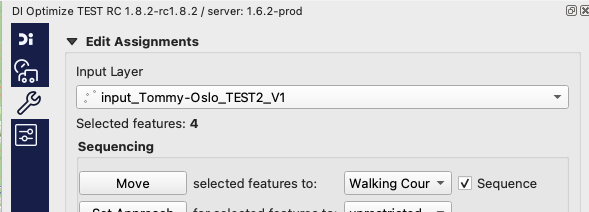
You select 4 stops on the map.
Before: Summary showed “4 features.”
Now: Summary shows “4 locations.”
Fixed: plugin crash on first-time installation
What’s new
We fixed a bug that could cause the plugin to crash the first time it was installed.
New users now get a more reliable first-run experience and a smoother installation flow.
Example
You install the plugin and open it for the first time.
Before: The plugin could crash and you needed help form DI to install.
Now: Startup is stable and completes as expected.
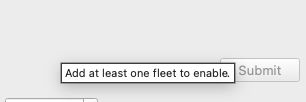
Validation tooltips now match the real reason a submission is blocked
What’s new
We corrected cases where the validation tooltip could show the wrong message when submitting a problem (e.g., missing setup, subscription limits, or other validation rules).
When something blocks submission, you need a precise reason so you can fix it quickly. Tooltip text is now aligned with the actual validation failure.
Example
Your subscription doesn’t support the submitted problem size.
Before: Tooltip might show an unrelated setup message.
Now: Tooltip clearly states the subscription/problem-size limitation.